Getting started
This page walks you from launching bibtui to the things you'll do every day: search, read, tag, and fetch PDFs.
Launch
bibtui MyCollection.bib
If you omit the file, bibtui opens a built-in file browser so you can pick one — or browse to a new location. Recently opened files are listed for quick access.
First run
The first time you start bibtui, a short onboarding wizard pre-fills sensible defaults for:
- your PDF directory (where fetched PDFs are saved),
- your Downloads folder (used when attaching an existing PDF), and
- an email for Unpaywall (used only for rate-limiting — no registration).
You can change any of these later from the settings screen.
The layout
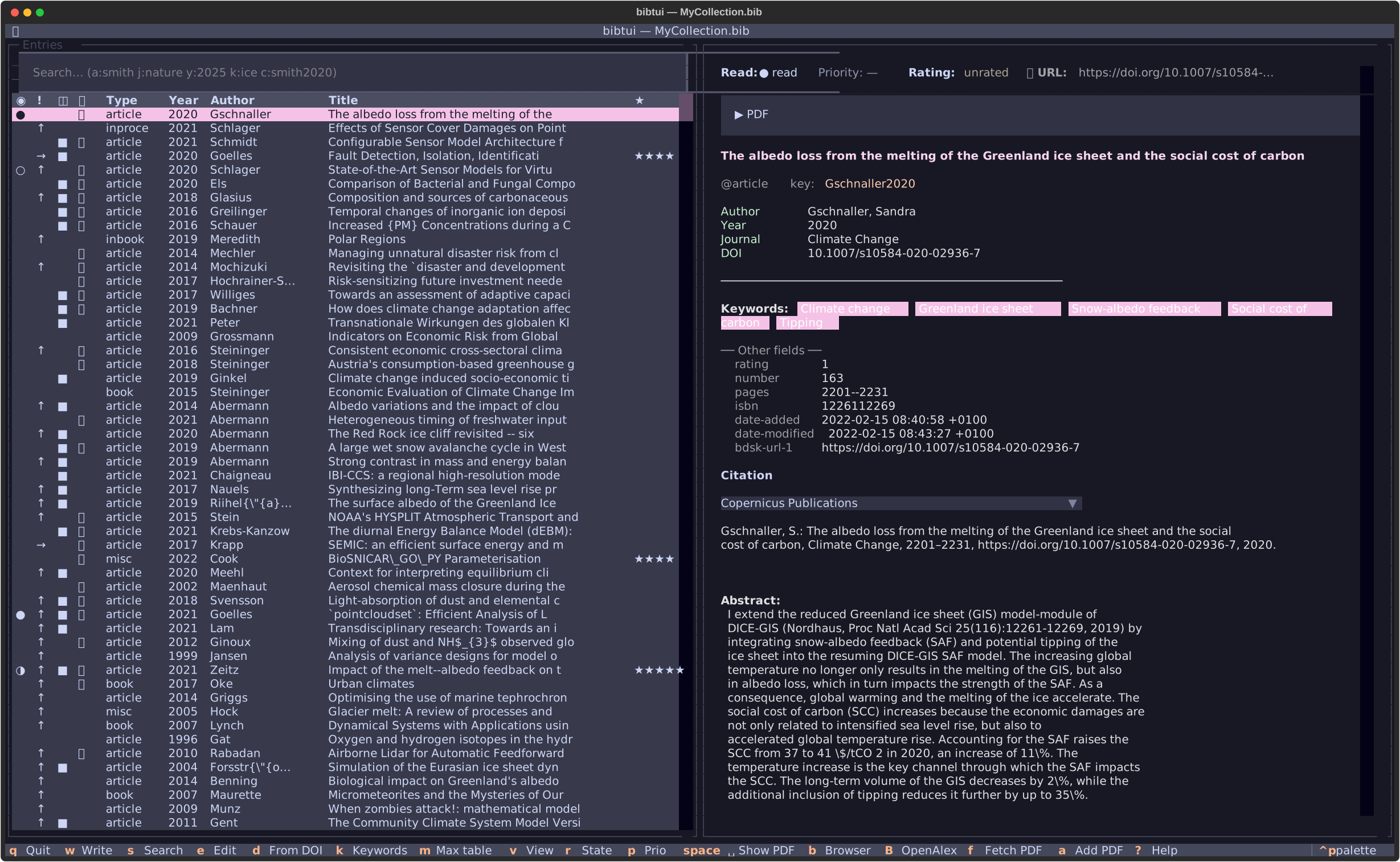
- Left — a sortable table of your entries. The first columns are compact
status icons: read state (
◉), urgency (!), a local-PDF indicator (◫), and a link (↗) when the entry has a URL. You can change which columns appear and their order — see Table columns. - Right — the detail pane for the selected entry: its fields, keywords, a formatted citation preview, and PDF actions.
- Bottom — the footer shows the most common key bindings.
Move through the list with the arrow keys (or the mouse). The detail pane updates as you go.
Everyday actions
| You want to… | Press |
|---|---|
| Search | s |
| Edit the selected entry | e |
| Edit keywords | k |
| Create a new entry | n |
| Import a new entry by DOI | n then d |
| Import from a PDF file | n then p |
Import a .bib file |
n then b |
| Fetch the PDF for an entry | f |
| Open the PDF | Space |
| Cycle read state (to-read → read) | r |
| Set a star rating | 1–5 (or 0) |
| Save your changes | w |
| Show all key bindings | ? |
| Command palette | Ctrl+P |
See the full keybindings reference for everything else.
Saving and backups
bibtui writes changes back to the same .bib file when you press
w. Before overwriting, it writes a backup copy, and it applies minimal
diffs so untouched entries stay byte-for-byte identical — keeping your Git
history clean.
Where to next
-
Searching your library — the field prefixes that make a big library feel small.
-
Fetching PDFs — how the automatic PDF download works and where files go.
-
Working as a team — share a library with your group using Git.