Keywords & tags
Keywords are bibtui's primary way to organise a library by topic. They're stored
in the standard keywords BibTeX field, so they travel with your .bib file
and work in other tools too.
The keywords editor
Select an entry and press k to open the keywords editor.
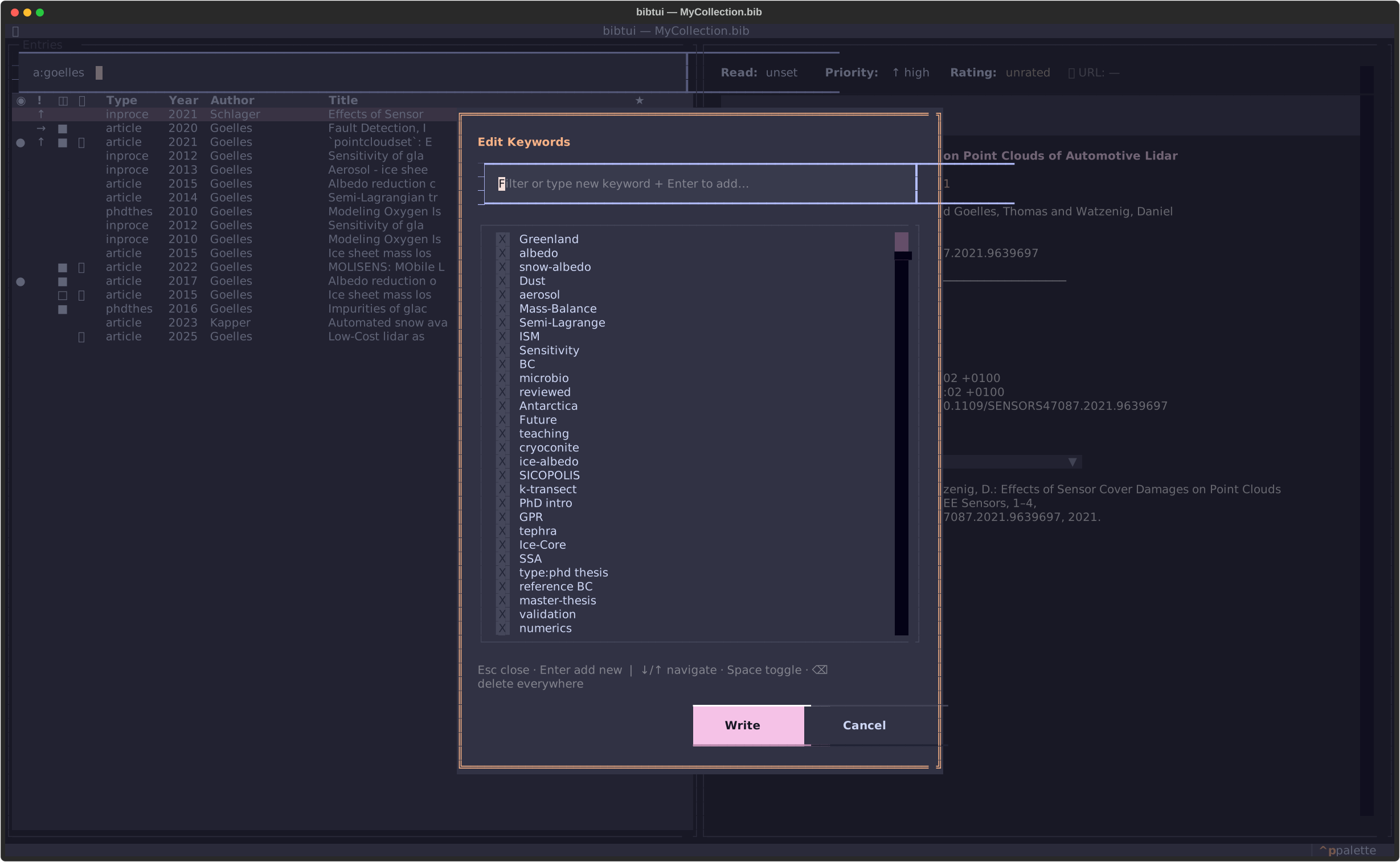
- The list shows every keyword in your library, with the ones on the current entry checked.
- Type in the filter box to narrow the list, or to enter a brand-new keyword.
- Enter or x toggles the highlighted keyword on or off for this entry.
- Enter in the filter box adds the keyword you typed instead.
- ↑ / ↓ move between the filter and the list.
- ⌫ on a highlighted keyword deletes it from every entry — a quick way to clean up a typo or merge a duplicate tag.
- Ctrl+S saves your changes; Esc cancels.
Filtering by topic
Once entries are tagged, the k: search prefix turns your keywords into a topic
filter. For example, k:albedo shows only entries tagged with that keyword. See
Searching your library for the full syntax.
Reading workflow
Keywords pair naturally with bibtui's lightweight reading-status fields, which
all live in your .bib file:
- Read state — cycle to-read → skimmed → read with r.
- Urgency — cycle high → medium → low with u.
- Star rating — press 1–5, or 0 to clear.
Combine them with search and sorting to answer questions like "what high-urgency
papers on sea ice have I not read yet?" — tag with k:, sort by urgency, and
scan the read-state column.